
Thanks for reading Pixel Buys | Finding things YOU LOVE is our job! Subscribe for free to receive new posts and support my work.
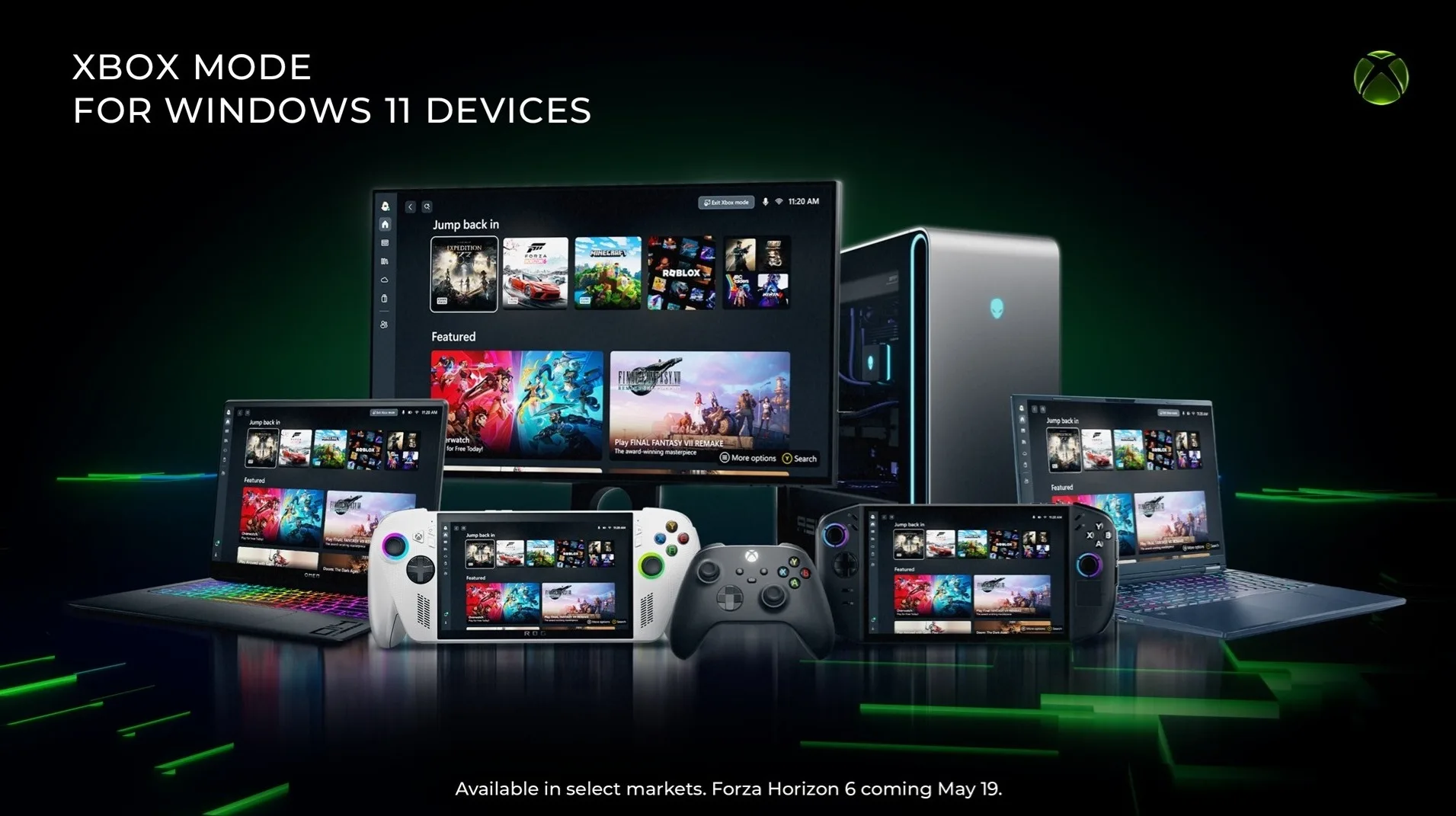
🔥 Xbox mode is now rolling out to Windows 11 laptops, desktops, and tablets — a full console-style home screen, controller-first navigation, and unified game library, no new hardware required
🧠 The mode suspends background apps and frees roughly 1–2 GB of RAM, giving your games more headroom — VRAM-constrained titles like F1 24 showed the most noticeable gains
📺 One dashboard pulls together your Xbox Game Pass catalog and installed titles from Steam, Epic, GOG, and other storefronts — no more launcher-hopping
🎮 Jump in with Windows Key + F11, toggle it in Settings > Gaming, or force-enable it today using ViVeTool feature flags 58989070 and 59765208
💸 It’s a free update — but to get the most out of it, you need a controller that actually belongs in your hands on the couch
Amazon: Xbox Wireless Controller Carbon Black — $49.99
Microsoft just flipped the switch on Xbox mode for Windows 11, turning the PC you already own into something that looks and feels a lot like an Xbox console. The rollout started April 30, 2026 in ten markets — US, Canada, UK, Germany, France, Brazil, Mexico, Japan, Australia, and South Korea — and it’s expanding through May and June toward full global availability. If you’re a PC gamer who’s ever wanted the simplicity of a console without giving up the power of Windows, this is the feature you’ve been waiting for.
What Xbox Mode Actually Is
Let’s be clear about what Microsoft built here: Xbox mode is not a game emulator, not a new OS, and not a hardware upgrade. It’s a controller-optimized full-screen shell that sits on top of Windows 11, designed to feel like booting up an Xbox Series X — minus the separate box.
The idea has been in development for a while. Microsoft first shipped a version of this as the “Full Screen Experience” on Xbox Ally handhelds in November 2025, refined it based on player feedback for several months, and is now bringing it to every form factor that runs Windows 11. That means your gaming desktop, your laptop, your tablet — all eligible.
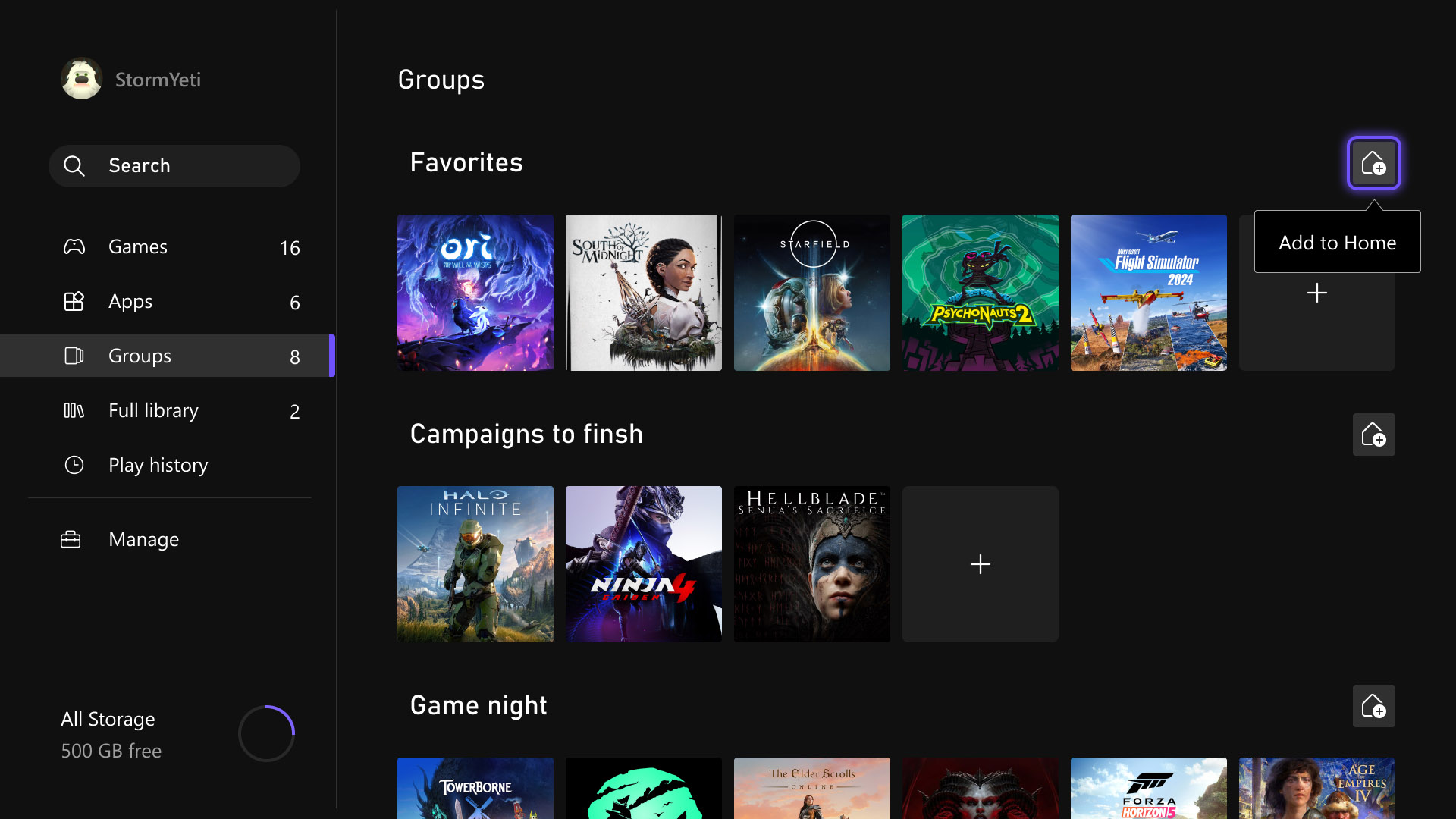
When you enter Xbox mode, the standard Windows desktop is replaced with a large-tile, horizontally-scrolling interface inspired directly by the Xbox Series X/S home screen. Your most recently played games sit front and center. Your full library — spanning Xbox Game Pass, Steam, Epic Games Store, GOG, and other installed storefronts — is aggregated into one place. No switching between launchers. No hunting through taskbars. Just games.
The mode also does something technically valuable under the hood: it bypasses the Desktop Window Manager (DWM) and suspends non-essential background processes. Early testing shows this frees up approximately 1–2 GB of system RAM, which translates to real, measurable gains in titles that were memory-constrained. For VRAM-limited games like F1 24, testers found “more noticeable improvement to average and 1% low FPS.” For most titles running comfortably above their memory floor, the gains are modest — expect 1–2 FPS on average — but the experience improvement from a clean, distraction-free interface is the real win.
Think of it as Steam Big Picture Mode, but built into Windows itself and tied to the full Xbox ecosystem.
How to Enable Xbox Mode Right Now
Microsoft is doing a phased rollout using its Controlled Feature Rollout (CFR) system — the same approach it uses for major Windows updates. That means even if you’re on the right build, the toggle might not be visible yet depending on your region and update ring. Here’s how to get in regardless.
The official path (for most people):
Open Settings > Windows Update
Turn on “Get the latest updates as soon as they are available”
Install KB5083631 (Build 26200.8328) or higher — this is the May 2026 Preview Update
Make sure the Xbox app is updated to the latest version from the Microsoft Store
Once the feature is available in your region, go to Settings > Gaming > Xbox mode and flip the toggle on
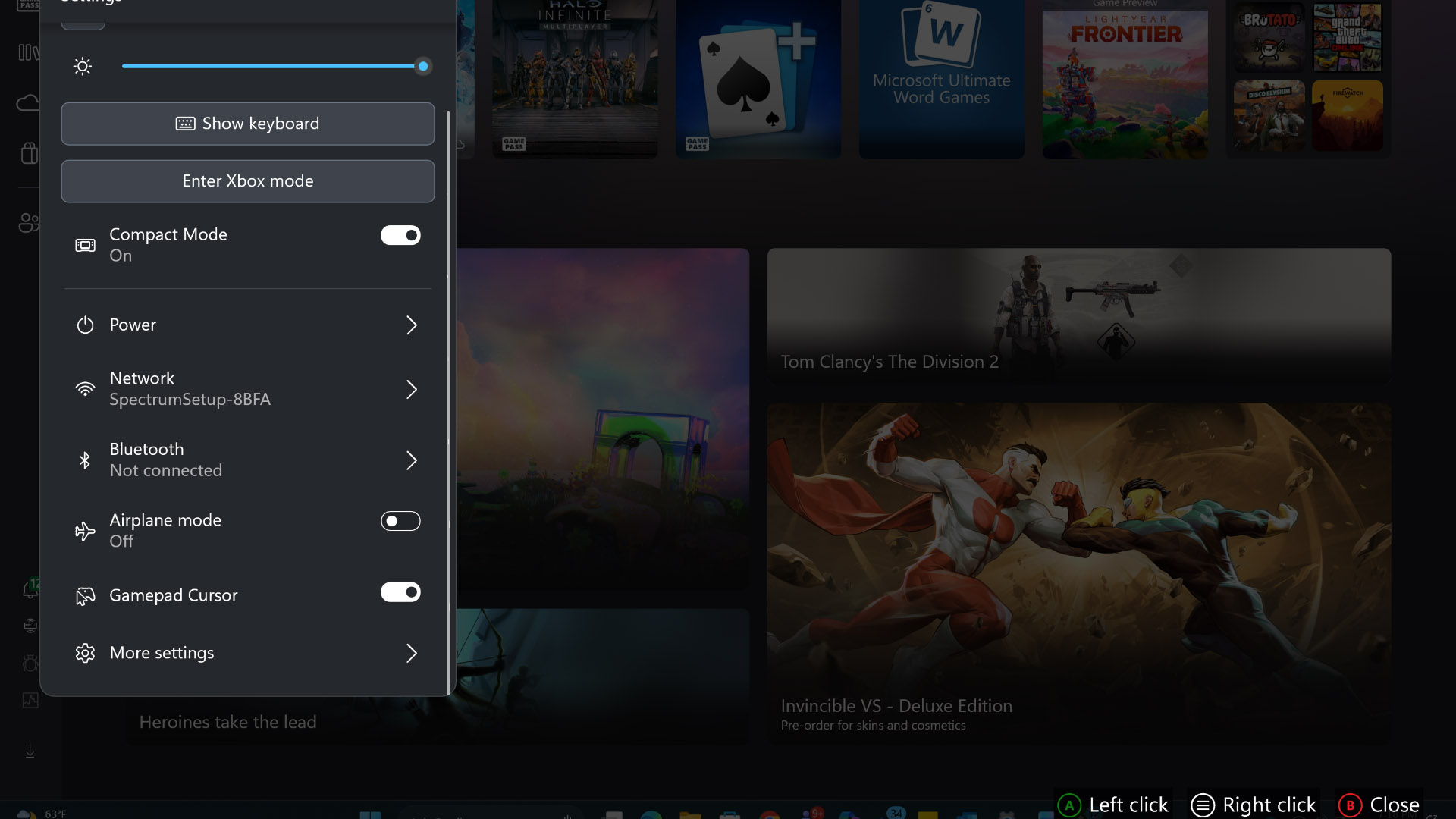
Once enabled, you can enter Xbox mode by pressing Windows Key + F11 at any time. Alternatively, hit Windows Key + Tab to open Task View — a new “Xbox Mode” tab will appear alongside your virtual desktops. There’s also an optional startup setting to boot directly into Xbox mode, bypassing the Windows desktop entirely.
Force-enable it today (advanced users):
If you’re impatient — and this is for technically comfortable users — you can use ViVeTool, an open-source command-line utility, to flip the CFR flags manually:
Download the latest ViVeTool from GitHub
Extract it to a folder (e.g.,
C:\ViVeTool)Open Command Prompt as Administrator and navigate to that folder
Run:
vivetool /enable /id:58989070,59765208Restart your PC
Microsoft’s caveat applies: force-enabling via ViVeTool may cause “some performance hiccups” since the feature hasn’t been fully validated on all hardware configurations. For daily drivers, waiting for the official rollout is the safer move.
Key Features and What They Mean for You
Once you’re in Xbox mode, here’s what you’re actually working with:
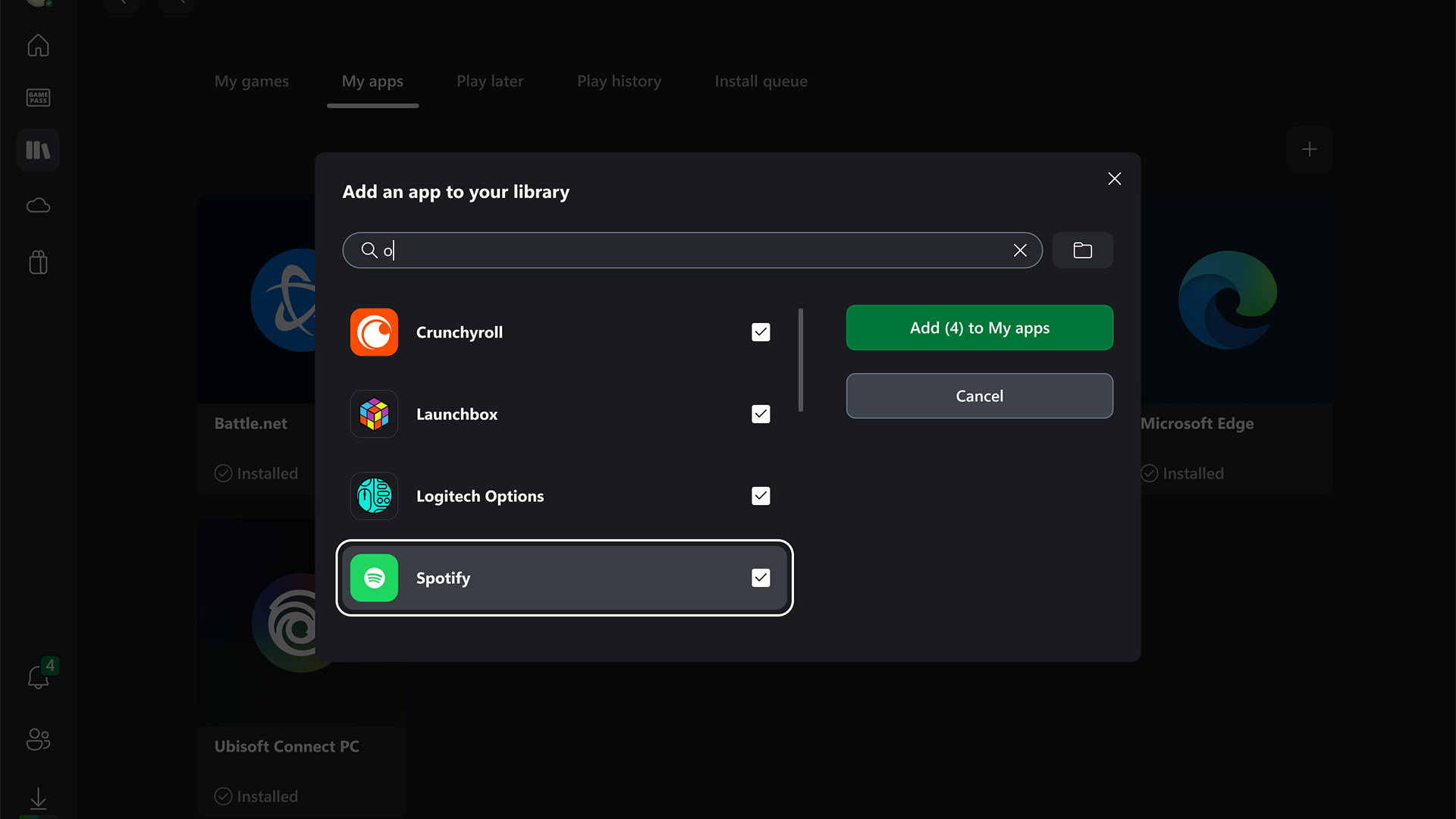
Unified Game Library. This is the headline feature for anyone who games across multiple storefronts. Xbox mode pulls your titles from Xbox Game Pass, Steam, Epic Games Store, GOG, and other installed PC stores into a single aggregated view. This directly mirrors what the ROG Xbox Ally X got in its April 2026 update — and it’s arguably the most impactful quality-of-life change for PC gaming in years. No more context-switching between launchers to find what you want to play.
Controller-First Navigation. The entire interface is designed around a gamepad. Large tiles, horizontal scrolling, trigger-and-bumper shortcuts — it’s the Xbox Series X home screen ported to your PC. If you’ve ever tried to use Steam Big Picture from the couch and hit the limitations of its interface, Xbox mode is a meaningful step up.
Background App Suspension. Entering Xbox mode automatically pauses non-essential Windows processes and bypasses DWM. The practical result is more system memory available for your game. This isn’t a magic FPS doubler — but in constrained scenarios, particularly on systems with 16 GB RAM or less, or with VRAM-heavy titles, it matters.
Seamless Mode Switching. You never lose access to Windows. Press the Xbox button on your controller or use the keyboard shortcut to drop back to the standard desktop at any time. It’s genuinely seamless — not a reboot or a login screen, just a toggle.
Optional Boot-to-Xbox Mode. For the couch setup or TV-connected PC that never needs to be a workstation, you can configure Windows 11 to boot directly into Xbox mode. Combined with a wireless controller, that’s a console experience on PC hardware.
Xbox Mode vs. SteamOS: The Real Comparison
Microsoft isn’t the first to try this. Valve has been running SteamOS on the Steam Deck since 2022, and it remains the gold standard for controller-first PC gaming. The comparison is worth having directly.
SteamOS is a purpose-built Linux-based OS optimized entirely for gaming. On the Steam Deck, it’s fast, stable, and polished — the Gaming Mode it offers is essentially what Xbox mode is trying to be for Windows. Valve’s implementation is deeply integrated into the hardware, boots quickly, and handles game compatibility through Proton. If you’re in the Steam ecosystem exclusively, it’s hard to beat.
Xbox mode on Windows 11 plays a different game. Windows is the most open gaming platform on earth — you get Game Pass, Steam, Epic, GOG, Xbox, emulators, mods, the full ecosystem. SteamOS locks you into Steam (and Proton compatibility for non-Steam games, which isn’t always clean). Xbox mode brings a console-style interface to that open ecosystem without sacrificing any of the flexibility.
The performance argument is more nuanced. SteamOS strips away a lot of Windows overhead by design — it’s a leaner OS. Xbox mode’s background suspension helps, but you’re still running on top of Windows 11. On equivalent hardware, SteamOS will have a slight edge in raw efficiency. On higher-end Windows gaming rigs, that efficiency gap gets irrelevant fast.
The honest verdict: if you own a gaming PC and play across multiple storefronts, Xbox mode is the best console-like experience Microsoft has ever built for Windows. If you’re purely a Steam user and considering a handheld, the Steam Deck’s SteamOS is still more polished. But for desktops, laptops, and TV-connected Windows PCs — Xbox mode is a genuine game changer.
Microsoft has also been transparent that Xbox mode is a stepping stone toward Project Helix — the upcoming console-PC hybrid platform that will blur the line between Xbox hardware and Windows even further. This isn’t a one-off feature. It’s the foundation.
Amazon: Xbox Wireless Controller Carbon Black — $49.99
The Right Accessories for Your New Xbox PC
Xbox mode is free — but the couch gaming setup it enables isn’t complete without the right gear.
For comfortable controller gaming: The Xbox Wireless Controller Carbon Black is the obvious pick. It connects wirelessly to your Windows 11 PC over Xbox Wireless or Bluetooth, works natively with Xbox mode with zero setup, and has the same ergonomics as the controller shipping with Xbox Series X/S consoles today. Textured grip, a dedicated Share button, and 40-hour battery life. At $49.99, it’s the fastest way to get the full Xbox mode experience on your PC.
👉 Xbox Wireless Controller Carbon Black on Amazon →
For the full living room audio setup: The SteelSeries Arctis Nova 7X is built specifically for Xbox ecosystems — dual wireless with simultaneous Xbox Wireless and Bluetooth connections, up to 38 hours of battery, and a retractable microphone with Discord-certified noise cancellation. The 2.4 GHz lossless connection keeps latency tight even in a busy wireless environment. If you’re gaming from the couch through Xbox mode, this is the headset that completes the setup.
👉 SteelSeries Arctis Nova 7X on Amazon →
Get both and your Windows PC gaming setup genuinely rivals what you’d get out of the box with an Xbox Series X — at a desk or on your couch.
Your PC Is an Xbox Now. Here’s the Bottom Line.
Xbox mode is the most significant thing Microsoft has done for Windows PC gaming in years — not because it’s technically groundbreaking, but because it solves a problem that has existed since the beginning of PC gaming: Windows is powerful but awkward when you want to game like you’re on a console.
The unified library alone changes the experience for anyone playing across Game Pass, Steam, and other storefronts. The background suspension delivers real (if modest) performance gains. The controller-first interface means you can finally plant your PC in your living room and actually use it from the couch without fighting the operating system.
The May 2026 rollout is currently live in the US and nine other markets. If you’re in one of those regions and have the KB5083631 update installed, check Settings > Gaming > Xbox mode right now. If the toggle isn’t there yet, flip the “Get the latest updates as soon as they are available” switch and sit tight — or go the ViVeTool route if you’re comfortable with it.
And grab a controller. Xbox mode is pointless without one.
Amazon: Razer Wolverine V2 Chroma — $99.99
Image credits: Microsoft / Windows Blog · Microsoft / Xbox Wire

0 Comments
No comments yet.